How to Build a WhatsApp-Style Chat UI in HTML, CSS & JavaScript (Beginner Tutorial 2026)
Build a WhatsApp-style chat UI from scratch in HTML, CSS & JavaScript — chat list, message bubbles, typing indicator, auto-reply, and mobile layout.
 CodeFree Team
November 01, 2026
12 min read
CodeFree Team
November 01, 2026
12 min read
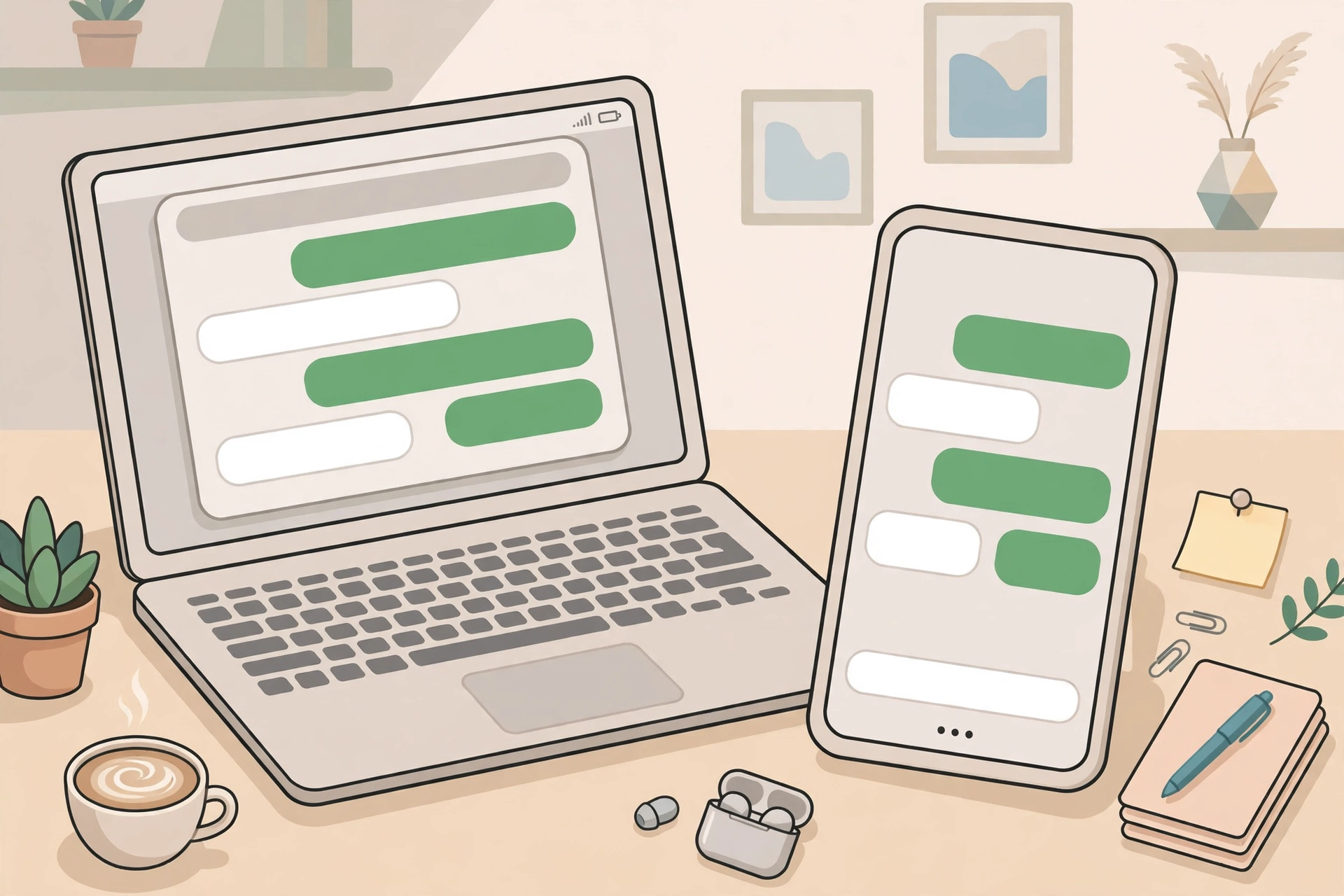
Open WhatsApp and you instantly know how to use it. The chat list is on the left, the conversation is in the middle, your messages sit on the right in green, and the other person's messages sit on the left in white. There is nothing to learn — and that is exactly why a WhatsApp-style chat interface is one of the best beginner projects in web development. It looks impressive, it teaches real layout and interaction skills, and you can finish a working version in a single evening.
In this tutorial, you will build a WhatsApp-style chat UI from scratch using only HTML, CSS, and JavaScript — no frameworks, no build tools, no backend. By the end, you will have a chat list with search, a conversation view with message bubbles, a working message composer, a typing indicator, and a simple auto-reply. And if you would rather start from a finished, polished version, you can download our free Chat UI Kit — a complete WhatsApp-style chat interface in HTML, CSS, and JavaScript — and use it as your starting point.
1. What Makes a Chat UI Feel Like WhatsApp?
Before writing any code, it helps to notice what your brain actually recognises as "WhatsApp-like". It is not one big feature; it is a handful of small, consistent details working together.
First, the layout is a two-column split on desktop: a narrower chat list on the left and a wider conversation panel on the right. On a phone, the same interface collapses to one column at a time — you see the list, tap a chat, and the conversation takes over the screen. Second, the messages themselves carry the identity: sent messages are right-aligned, received messages are left-aligned, and each bubble has a small timestamp. Third, the details sell the illusion: double ticks for read messages, a subtle patterned or tinted chat background, an input bar pinned to the bottom, and a header showing the contact's name and online status.
The good news is that none of this needs anything exotic. The two-column layout is flexbox. The bubbles are styled divs. The ticks are just characters or small SVG icons. The typing indicator is a div that appears and disappears on a timer. When you break the interface down like this, the whole project stops feeling intimidating and starts feeling like a series of small, solvable problems — which is exactly how real front-end work feels.
 2. Plan the Layout Before You Style Anything
Beginners often jump straight into colours and rounded corners, then get stuck when the layout falls apart. A better order is: structure first, styling second, behaviour third. Sketch the page as boxes before you write a single line of CSS.
Your page has three big boxes. The outer container holds everything and fills the viewport height. Inside it, the sidebar holds the search box and the chat list. The main panel holds three stacked sections: the chat header at the top, the scrollable message area in the middle, and the composer at the bottom. The message area is the only part that scrolls; the header and composer stay fixed. That one decision — making only the middle scroll — is what makes the interface feel like a real app instead of a long web page.
Inside the message area, each message is its own row. A sent message row pushes its bubble to the right; a received message row pushes its bubble to the left. Do not try to position bubbles with floats or absolute positioning. A flex row with justify-content: flex-end for sent messages and justify-content: flex-start for received messages is simpler, more predictable, and far easier to debug when something looks wrong.
3. Build the HTML Skeleton
Start with clean, semantic HTML. You need a sidebar with a search input and a few sample chats, and a main panel with a header, a message container, and a form for sending messages. Using a real form for the composer matters: it gives you Enter-to-send behaviour for free, and it keeps the interface accessible for keyboard users.
<div class="app">
  <aside class="sidebar">
    <input type="search" placeholder="Search chats">
    <ul class="chat-list">
      <li>Rahul Verma</li>
      <li>Team — Yadu Tech</li>
    </ul>
  </aside>
  <main class="chat-panel">
    <header class="chat-header">Rahul Verma — online</header>
    <div class="messages" id="messages"></div>
    <form class="composer" id="composer">
      <input id="messageInput" placeholder="Type a message">
      <button type="submit">Send</button>
    </form>
  </main>
</div>
Keep the sample data realistic — Indian names, short everyday messages, a group chat alongside one-to-one chats. Realistic data makes layout problems visible immediately: long names, long messages, and group names with dashes will expose overflow issues that "Test 1" and "Hello" never would. If a bubble or a chat row breaks with realistic content, fix it now, not after you have added twenty more features.
4. Style It With CSS: Bubbles, Ticks, and the Chat Background
CSS is where the project starts looking like WhatsApp. Set the outer container to display: flex with a height of 100vh (or 100dvh on mobile, so the browser's address bar does not cause a jump). Give the sidebar a fixed width — around 320 to 360 pixels works well — and let the chat panel grow to fill the rest with flex: 1.
For the bubbles, keep the rules simple and consistent. Limit bubble width to about 65 to 75 percent of the message area so long messages wrap into a readable column instead of stretching edge to edge. Round all four corners, but make one corner nearly square on the side the bubble points from — that tiny detail is what makes a bubble look like a speech bubble rather than a pill. Sent bubbles get the familiar green tint; received bubbles stay white or light grey with a subtle border so they stay visible on a patterned background.
Timestamps belong inside the bubble, aligned to the bottom-right in a smaller, muted font, with the double ticks right beside them. Use a muted grey-blue for the ticks, and a brighter blue for read ticks if you want that extra touch of realism. For the chat background, a soft solid colour is perfectly fine for a first version; a subtle repeating pattern or a very light texture is the next step up. Avoid busy images behind text — readability always beats decoration in a chat window.
One CSS trap to watch for: when you hide something with a hidden attribute or a utility class, make sure no other rule overrides it. A common beginner bug is a component rule like .emoji-picker { display: flex; } beating the [hidden] rule, leaving a panel permanently visible. The fix is simple — add [hidden] { display: none !important; } to your stylesheet — but the bug is confusing until you know to look for it, so check your hidden panels early.
5. Add JavaScript: Sending, Auto-Reply, and the Typing Indicator
JavaScript turns the pretty layout into a working chat. The core flow has just three steps: read the input, create a message bubble, and scroll the message area to the bottom. Everything else — auto-reply, typing indicator, search — is a variation on that flow.
const form = document.getElementById('composer');
const input = document.getElementById('messageInput');
const messages = document.getElementById('messages');

function addMessage(text, sent) {
  const div = document.createElement('div');
  div.className = sent ? 'message sent' : 'message received';
  div.textContent = text;
  messages.appendChild(div);
  messages.scrollTop = messages.scrollHeight;
}

function showTyping() {
  const typing = document.createElement('div');
  typing.id = 'typing';
  typing.textContent = 'typing…';
  messages.appendChild(typing);
}

function hideTyping() {
  const typing = document.getElementById('typing');
  if (typing) typing.remove();
}

form.addEventListener('submit', (e) => {
  e.preventDefault();
  const text = input.value.trim();
  if (!text) return;
  addMessage(text, true);
  input.value = '';
  showTyping();
  setTimeout(() => {
    hideTyping();
    addMessage('Samajh gaya! Thanks for your message.', false);
  }, 1200);
});
Three details in that small snippet are worth pausing on. First, textContent instead of innerHTML for user-typed text is not a style choice — it is a security choice. If you insert raw input as HTML, a message containing a script tag or a stray tag can break your page or worse. Always escape user input, even in a toy project; the habit transfers directly to real work. Second, the typing indicator is just a bubble that says "typing…" shown for a second or so before the reply arrives. That tiny delay makes the auto-reply feel human instead of instant and robotic. Third, always scroll after adding a message, or new messages will silently appear below the fold and users will think sending is broken.
Once sending works, add chat search: listen for input on the search box and hide any chat list item whose name does not include the search text. It is five lines of code, it makes the sidebar feel like a real app, and it teaches the filter pattern you will reuse in every list-based project — product lists, task lists, contact lists — for the rest of your career.
 6. Make It Mobile-Friendly and Accessible
A chat UI that only works on desktop is only half a project, because most people in India will open it on a phone. The mobile version needs two behaviours: the sidebar and the conversation cannot both be visible on a narrow screen, so tapping a chat should hide the list and show the conversation, with a back button to return. A single CSS class on the outer container — for example, showing-chat — plus a media query that hides the sidebar when that class is present, is enough to implement this cleanly.
Also mind the small mobile details. Use 100dvh instead of 100vh so the layout does not jump when the browser chrome appears and disappears. Make tap targets at least 44 pixels tall — chat rows, the send button, and the back button all count. Keep the composer input from zooming the page on iOS by using a font size of at least 16 pixels for inputs. None of these is glamorous, but together they are the difference between "looks like WhatsApp" and "feels like WhatsApp".
Accessibility deserves the same attention. Label the search and message inputs properly, make sure the send button works with the keyboard alone, and keep colour contrast high enough that grey timestamps are still readable. Dark mode is a popular next step — a single class on the page that swaps the colour variables covers the whole interface at once — but get the light theme right first. A dark mode layered over a broken light theme just gives you two broken themes.
7. Common Mistakes Beginners Make (and How to Avoid Them)
The first mistake is building the whole interface before testing any interaction. Write the skeleton, add one send-message flow, test it, and only then add search, emoji, or dark mode. The second mistake is using fixed pixel heights for the message area: the moment a screen is shorter or the composer grows, messages get cut off. Let flexbox distribute the height instead — header and composer take what they need, and the message area takes the rest.
The third mistake is copying WhatsApp's exact colours, logo, and name and calling it your own product. Taking inspiration from a layout pattern is fine; cloning a brand's identity is not, and it will cause trouble if you publish the result. Use your own project name, your own accent colour variation, and your own sample data. The fourth mistake is skipping the empty states: what does the chat panel show before any chat is selected, and what does the list show when a search matches nothing? A short, friendly empty message costs two lines of code and makes the project feel finished instead of half-built.
Finally, do not stop at "it works on my laptop". Open it on your phone, send ten messages in a row, search for a name that does not exist, paste a very long message, and type a message with special characters. Every one of those tests takes under a minute, and each one catches a class of bug that users will otherwise find for you. That testing habit — not any single CSS trick — is what separates a beginner project from a portfolio-ready one.
Frequently Asked Questions
Do I need a backend or database to build a chat UI?
No. Everything in this tutorial runs in the browser with HTML, CSS, and JavaScript. A backend only becomes necessary when you want messages to travel between two real people on different devices — that is a later project, and this front-end version is the right foundation for it.
Can I use this chat UI in my own project or portfolio?
Yes. A chat interface you build yourself is an excellent portfolio piece, and our free Chat UI Kit is free source code you can study, customise, and build on. Just use your own branding and sample data rather than copying WhatsApp's logo or name.
How do I add real-time messaging later?
Start by keeping your message-adding code in one function, like the addMessage example above. Later, you can call that same function whenever a message arrives over WebSockets or a similar real-time channel, instead of only when the local user sends one. Clean separation now saves a rewrite later.
Why do my messages not scroll to the bottom automatically?
Almost always, the scroll line is missing or runs before the new bubble is added. Make sure messages.scrollTop = messages.scrollHeight runs after appendChild, and check that the message container — not the whole page — is the element with the scrollbar.
Download the Finished Chat UI Kit (Free)
If you want to skip the setup and start from a working, tested version — with a chat list, search, message bubbles, typing indicator, emoji picker, and dark mode already built in — download the free Chat UI Kit on CodeFree.cc. It is free source code in plain HTML, CSS, and JavaScript, so you can open it, change the colours, add your own chats, and make it yours in minutes. Then come back to this tutorial whenever you want to understand how any part of it works — because the best way to learn a chat UI is to build one, break it, fix it, and build it again.
Keep reading

How to Build a Delivery Challan Generator in JavaScript (Step-by-Step Tutorial 2026)
Build your own GST-ready delivery challan generator in plain JavaScript — auto totals, challan numbering, and a print-ready challan sheet. Free source code included.
Read article
How to Build a Countdown Timer in JavaScript: Step-by-Step Beginner Tutorial (2026)
Build a working countdown timer in plain JavaScript: HTML structure, CSS styling, live countdown logic, timezone fixes and a free launch-page template.
Read article
SIP Calculator Excel Formula: Calculate SIP Returns in Excel (Free Copy-Paste Formula, 2026)
Calculate SIP returns in Excel with a free copy-paste formula. Step-by-step guide, worked ₹10,000/month example at 12% for 10 years, and the 5 mistakes Indians make in SIP sheets.
Read article